
Alarm help
Texecom Connect lets you arm, part arm and disarm your alarm from your phone, wherever you are. Setting it up takes about five minutes.
Once we've added you to your alarm system, you'll get an email from Texecom asking you to create a password. Tap the link and choose one. Check your junk folder if it hasn't arrived.
Search for Texecom Connect in the App Store (iPhone) or Google Play (Android) and install it.
Open the app, enter the email we added for you and the password you just created, then tap Sign in. Please don't use "Sign up": your account is already set up.
When asked for your Alarm System Code, enter the same 4-digit user code you use on the keypad and tap Login.
From the home screen you can Arm the alarm when you leave, Part Arm it (for example at night), Disarm it, and see alerts using the bell icon.
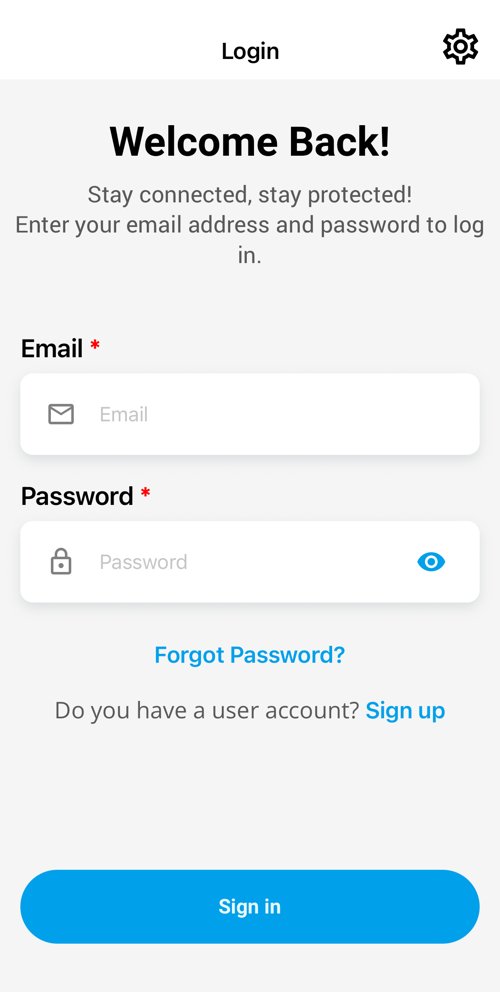
Step 3: sign in with your email and password
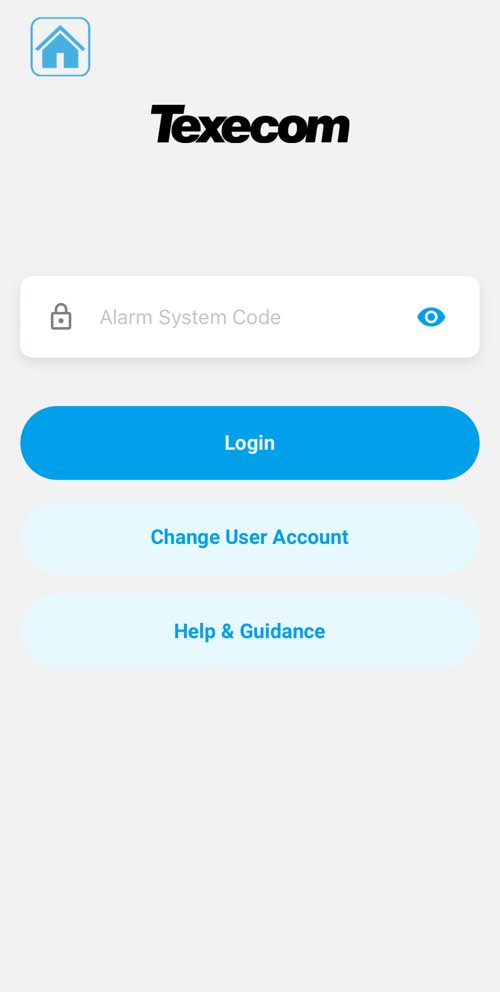
Step 4: enter your 4-digit alarm code
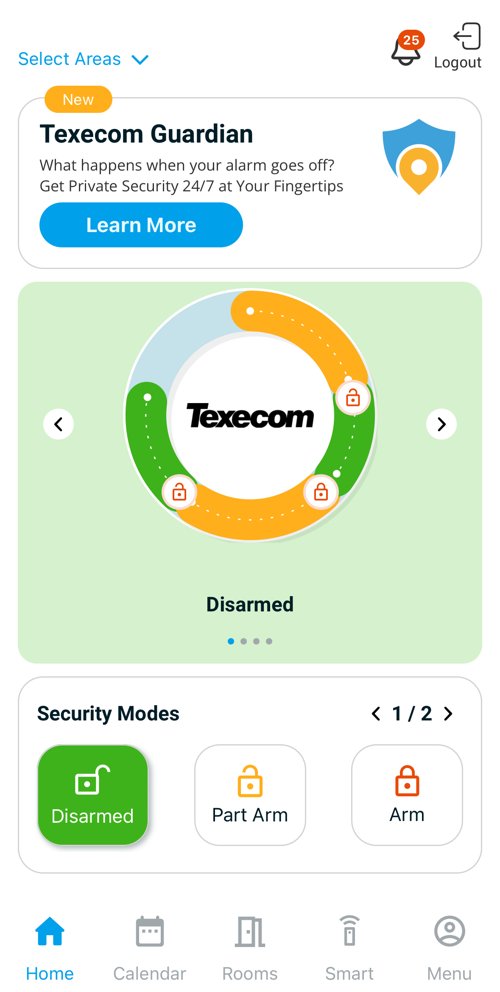
Step 5: arm, part arm or disarm
Faster login: use Face ID or your fingerprint instead of your password. Turn it on in the app's settings.
Forgotten password? Tap "Forgot Password?" on the login screen to reset it.
Adding family members: send us their email addresses and we'll add them to your system.
App not connecting? If you've changed your Wi-Fi, your SmartCom needs reconnecting. See our SmartCom Wi-Fi guide.
Any problems? Call us on 0800 0029 365 or email [email protected] and we'll talk you through it.