
Alarm help
Your SmartCom is the small white Texecom box that connects your alarm to the internet so the Texecom Connect app works. If you change your broadband, router or Wi-Fi password, it needs to be told about the new network. It takes about five minutes.
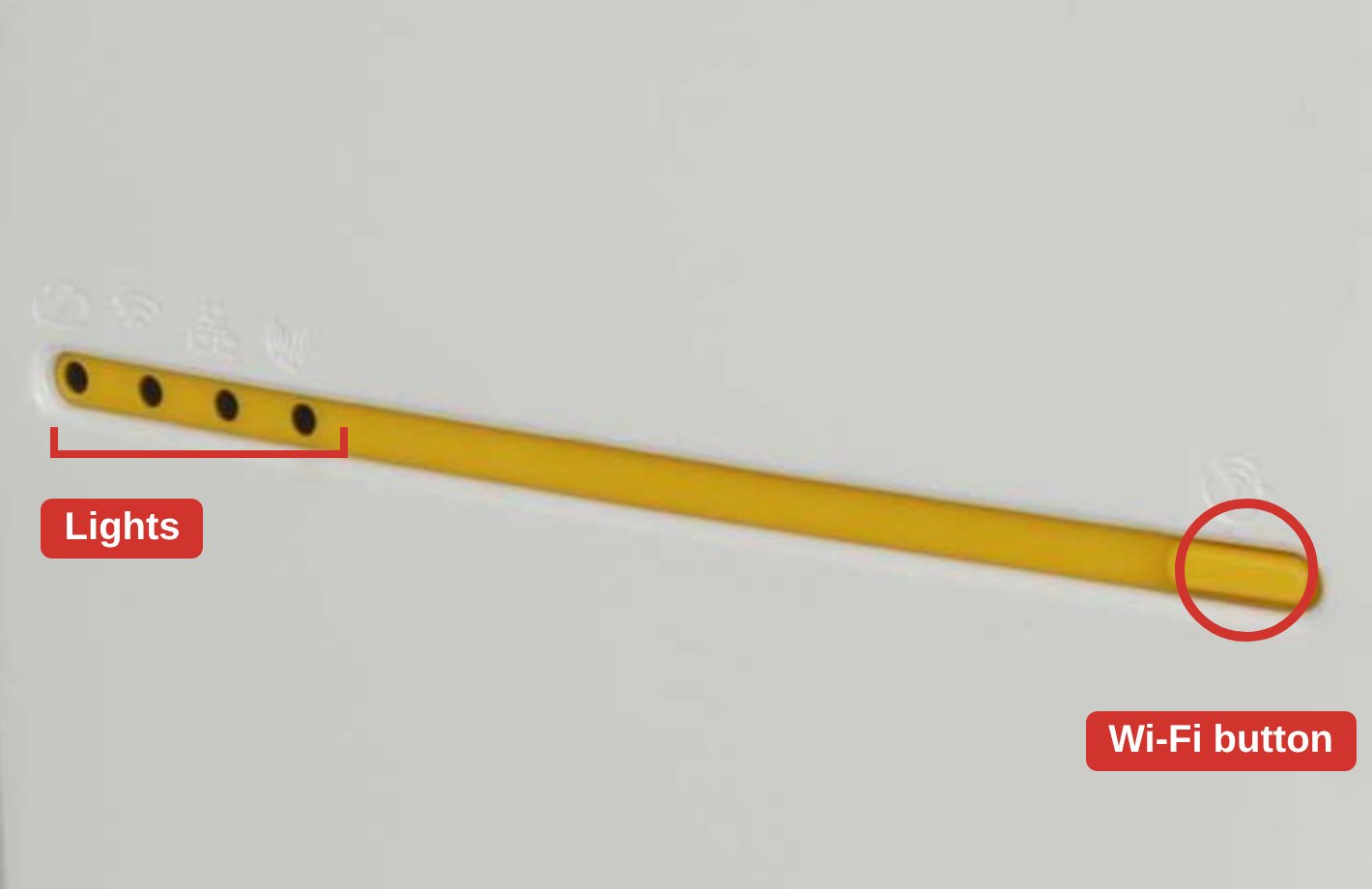
The Wi-Fi button is the yellow tab at the right-hand end of the yellow strip. The blue lights, left to right, are Cloud, Wi-Fi, Network and Mobile.
Find the SmartCom (usually beside or near the alarm panel). Press and hold the Wi-Fi button for 5–10 seconds until the blue Wi-Fi light starts blinking, then let go.
If your SmartCom has two QR codes
Scan the right-hand QR code with your phone camera to join the SmartCom, then scan the left-hand QR code to open its setup page.
If it doesn't
In your phone's Wi-Fi settings, join the network starting "SmartCom-" (it can take up to a minute to appear). The password is on the SmartCom's label. Then open a web browser and go to 192.168.2.1.
A list of Wi-Fi networks appears (tap refresh if it's empty). Select your new network, enter its password and tap Connect.
The Wi-Fi light flashes quickly while it connects, then stays on solid. Once the Cloud light is on solid, open Texecom Connect and check you can see your alarm. Your phone will go back to your normal Wi-Fi on its own (if not, rejoin it).
Can't see "SmartCom-" on your phone? Wait a minute and refresh your Wi-Fi list. If the Wi-Fi light has stopped blinking, repeat step 1.
Your network isn't in the list? Make sure the router is on and nearby, and that 2.4 GHz is switched on. Tap refresh.
Cloud light still flashing? Give it a few minutes after the Wi-Fi light goes solid. If it keeps flashing, give us a call.
Please don't press the Wi-Fi button repeatedly or open the SmartCom's cover. That can reset it to factory settings.
Any problems? Call us on 0800 0029 365 or email [email protected] and we'll talk you through it.